
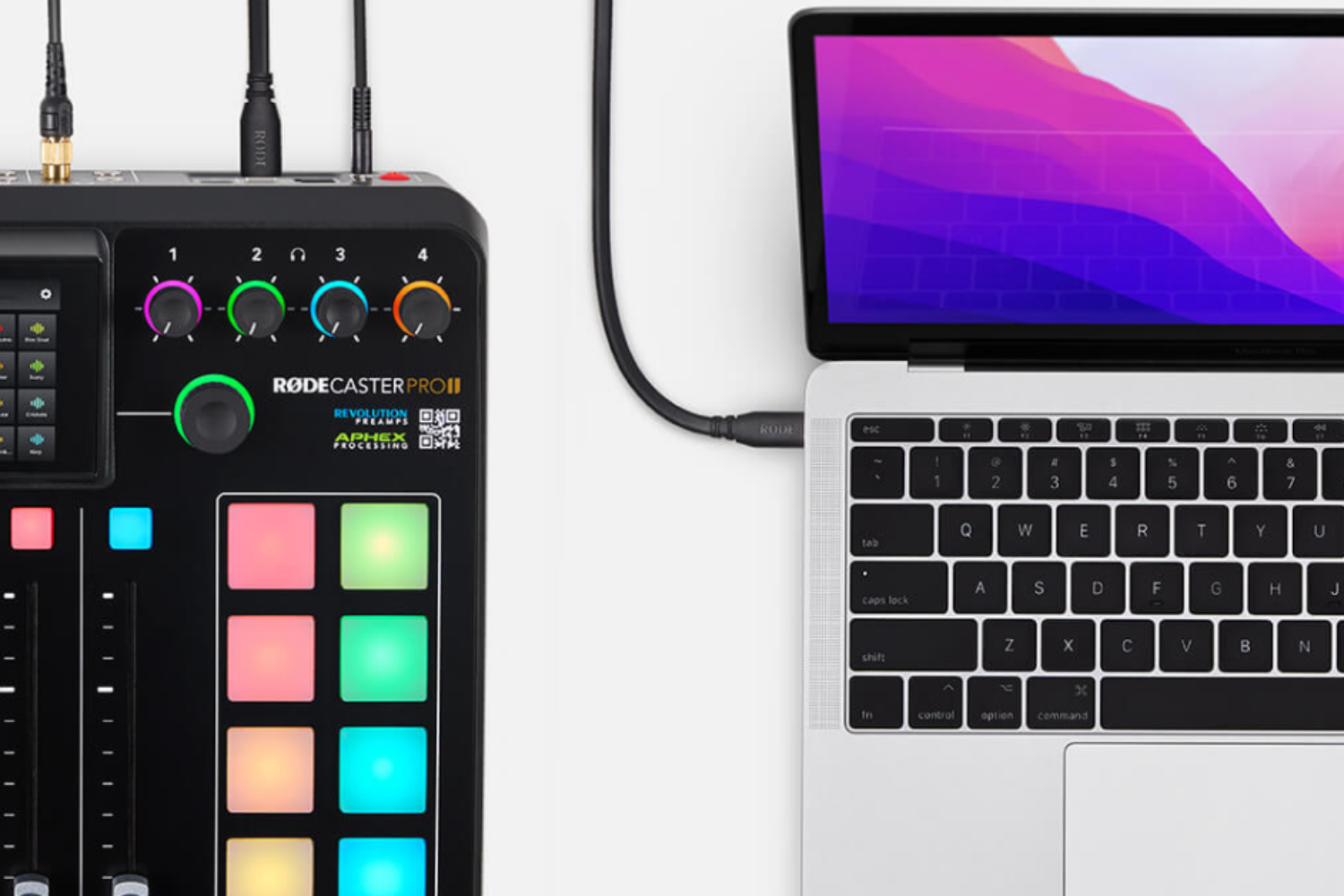
RØDECaster Pro Guide II (Included in Podcast Studio)
Hey there! This guide is to explain some of the basics of how to use the RØDECaster Pro II soundboard. Don’t be afraid to ask for help if you get stuck. There are plenty of online resources, and our staff is here to support you as you learn to use your soundboard. With a little patience and practice, you’ll soon be a pro at using the RØDECaster Pro II soundboard.
Before your booking, you will need something to record on:
SD Card- More Info Here
You can record your audio directly to a microSD card. You will need to use a high-quality microSD card that supports data rates of at least 100MB/s. Most quality microSD cards labelled ‘microSDHC’, and all cards labelled ‘microSDXC’ will work well. Cards without these standards or low-quality unbranded cards are not recommended and may cause glitches or other recording issues. Insert the microSD into the slot on the rear of the RØDECaster Pro II and click it into place.
USB-C Storage Device- More Info Here
You can record your audio directly to a USB storage device (for example a hard drive or SSD) via the RØDECaster Pro II’s USB audio interfaces. You will need to use a high-quality device that supports data rates of at least 100MB/s and has a USB-C connection. Low-quality or unbranded devices are not recommended as they may affect performance or cause glitches and other recording issues. You can connect a USB storage device to either of the USB inputs to suit your setup.
Computer software- More Info Here
To record the audio to your computer, you will need to download and use a digital audio workstation (DAW). You can use the RØDECaster Pro with any DAW like Audition, GarageBand, Logic Pro X, ProTools, and Reaper, so we recommend using one of these DAWs. Now that you have your DAW set up on your computer, you’ll need to route the incoming audio from the RØDECaster Pro to the correct place.
For a more in-depth walkthrough for setting up multitrack sessions in popular DAWs, including GarageBand, Reaper, and ProTools, see the links below.
Audition Guide (Mac) – Audition Guide (PC) – Garageband Guide – Logic Pro X – Pro Tools (Mac) – Pro Tools (PC) – Reaper (Mac) – Reaper (PC)
How to get started with the Rode Caster Pro II
In the Podcast Studio, the Soundboard and Mics will already be plugged in so you can Skip Step 1.
On-board Processing
Connecting Callers and Online Guests
With the RØDECaster Pro, connecting callers and online guests is just as easy as connecting physical guests. Dedicated USB, smartphone and Bluetooth channels allow for both phone calls and online guests to be integrated into a podcast with crystal-clear audio. These channels can be recorded alongside the four microphone channels. You could simultaneously connect a phone call on the smartphone channel, a Skype caller on the Bluetooth channel and a Zoom meeting on the USB channel with yourself and three other podcasters in the room.
Using Sound Pads
The sound pads on the RØDECaster Pro are an incredibly easy way of storing audio to be played at any time during a podcast. They’re super fun to use and especially handy for live productions. The sound pads can be used for triggering pre-recorded interviews, playing music beds, intro and outro music, stings and sound effects, segment intros and more. Even though they are extremely simple to use, there are endless ways to customise and deploy them.